This is what you need to do connect to the Laboratory if your computer works under Apple macOS operating system.
STEP 1: Install the Microsoft Remote Desktop
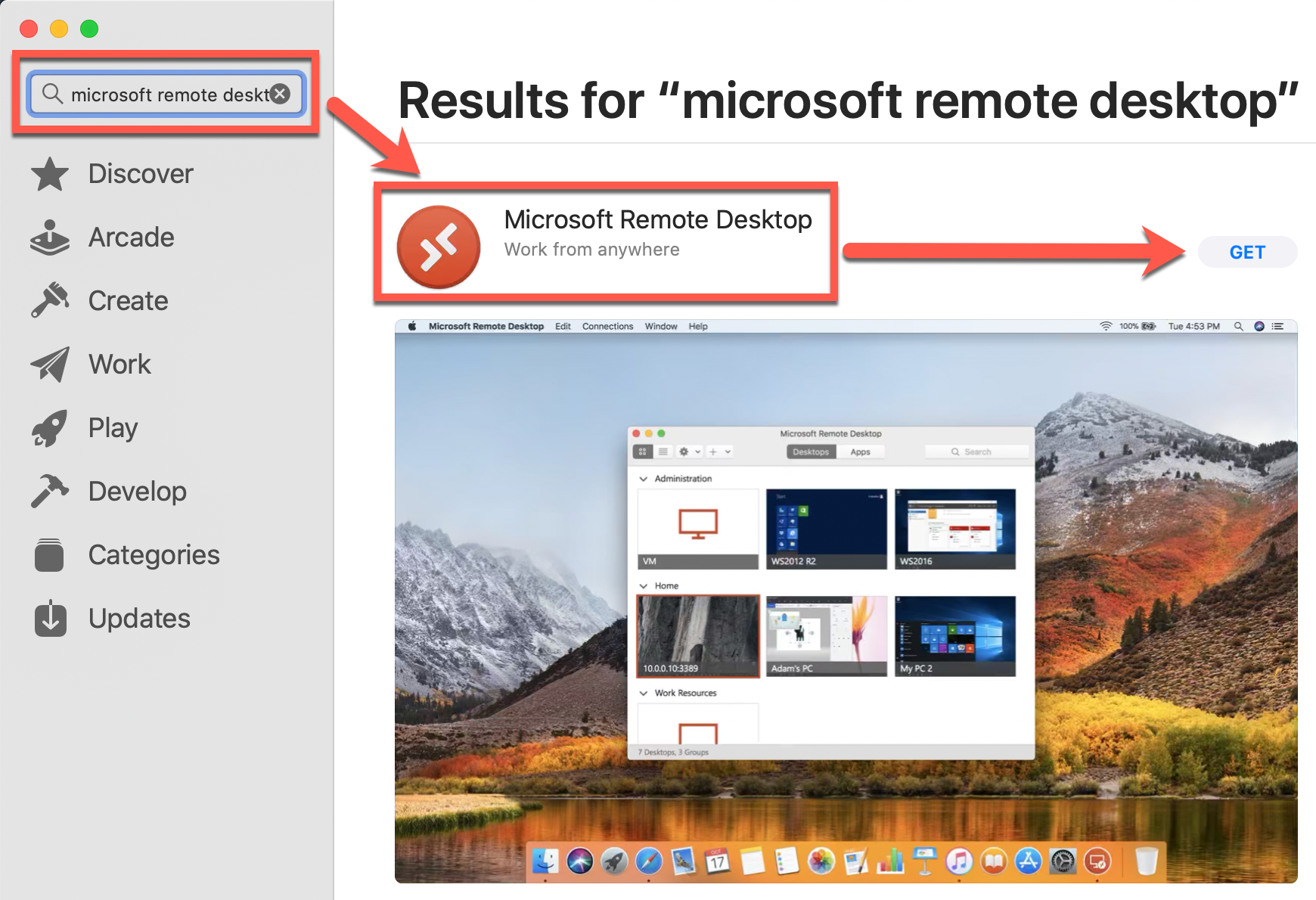
To connect to the Laboratory you will need the Microsoft Remote Desktop application. Run App Store, type "microsoft remote" in the search box and click the Get button. Follow the installation instructions.
STEP 2: Run the RDP client
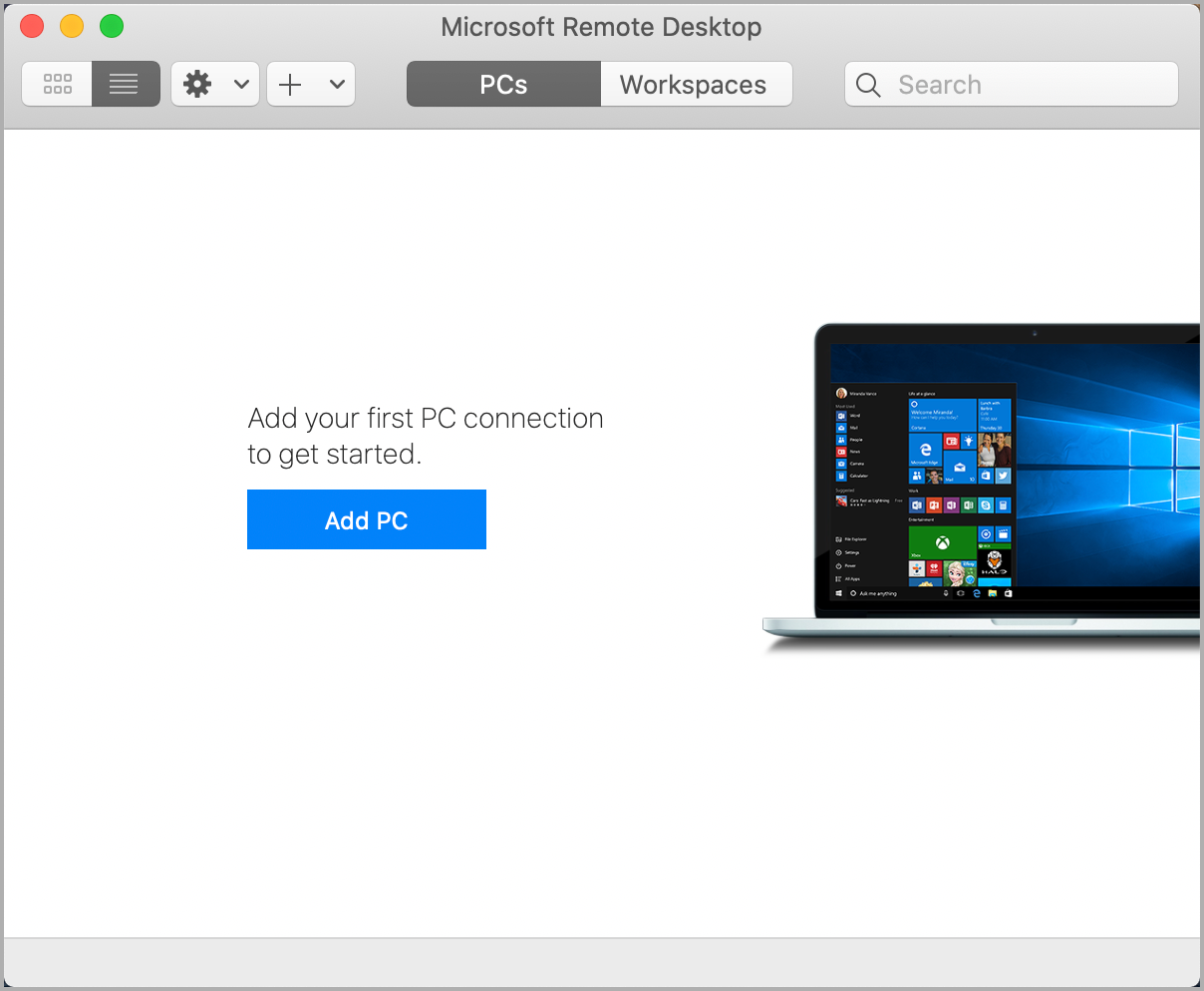
Run the application as soon as it's installed.
STEP 3: Set up the Laboratory connection
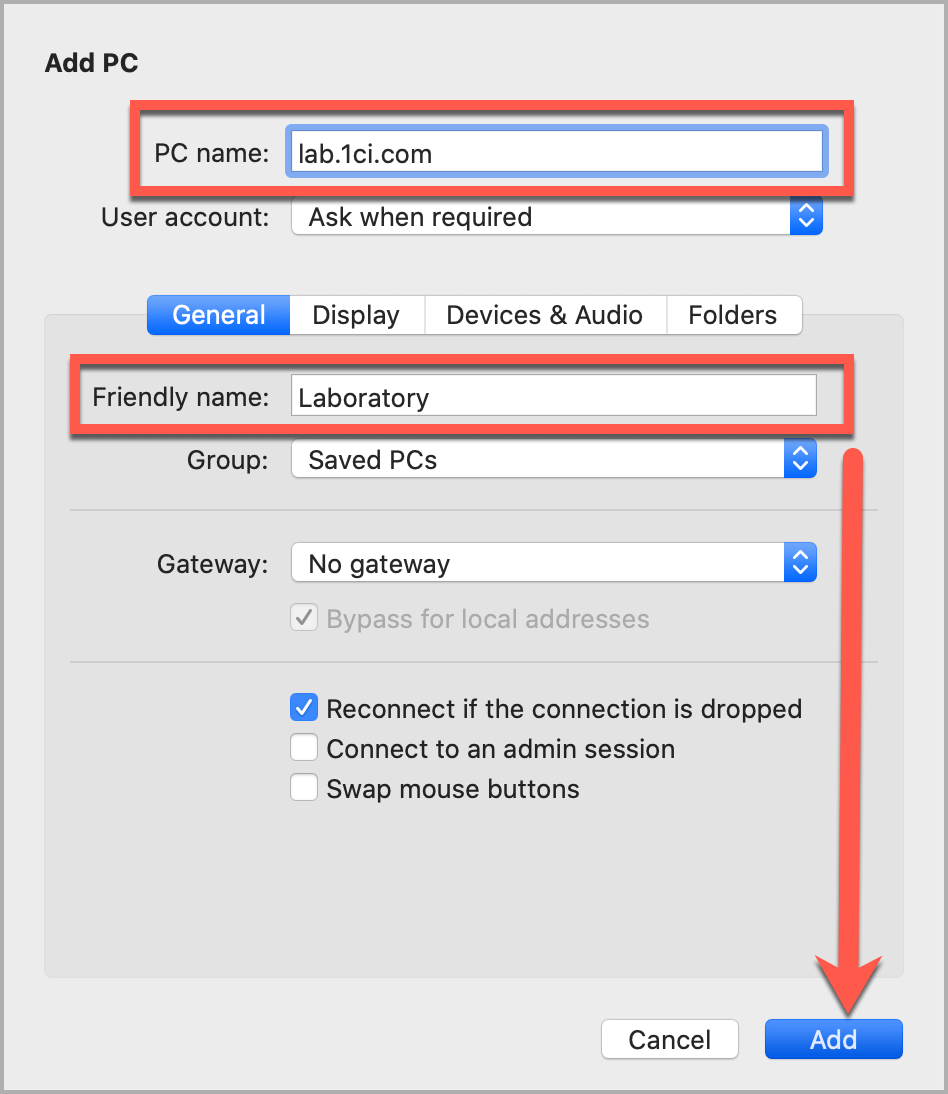
Click the Add button, enter "lab.1ci.com" in the PC name field. We also recommend you type in "Laboratory" in the Friendly name field. Then click Add.
STEP 4: Start the connection
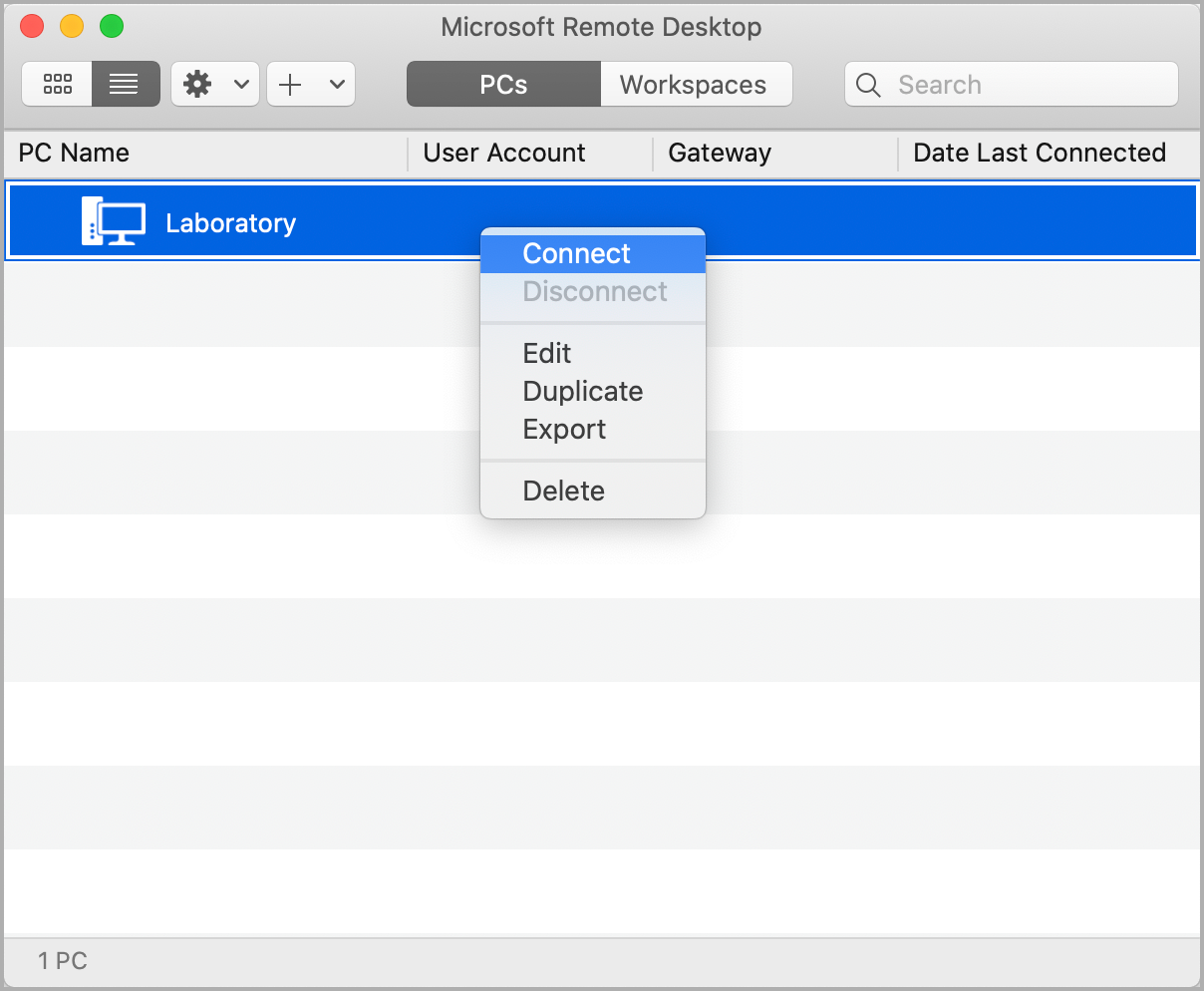
Select the Connect item in the drop-down menu or double-click the Laboratory list entry to establish a remote connection.
STEP 5: Enter your credentials
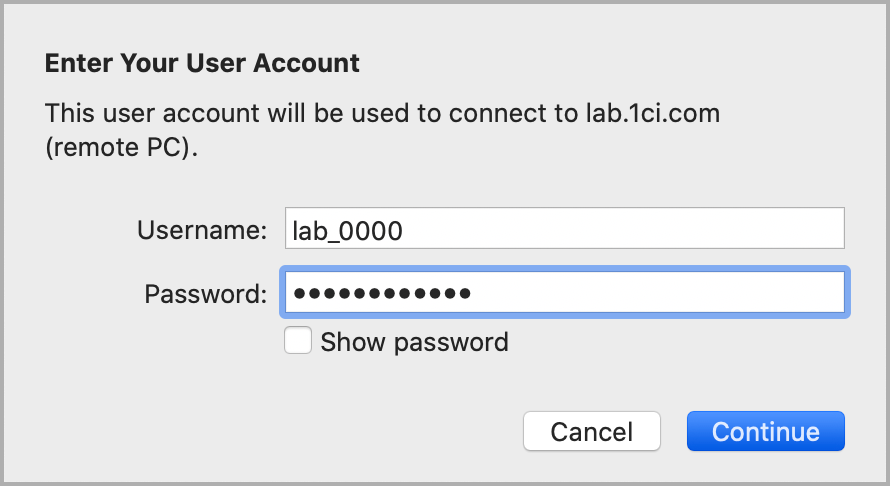
Enter your login and password. Your login and password were emailed to you after you activated your certification attempt. Then click Continue.
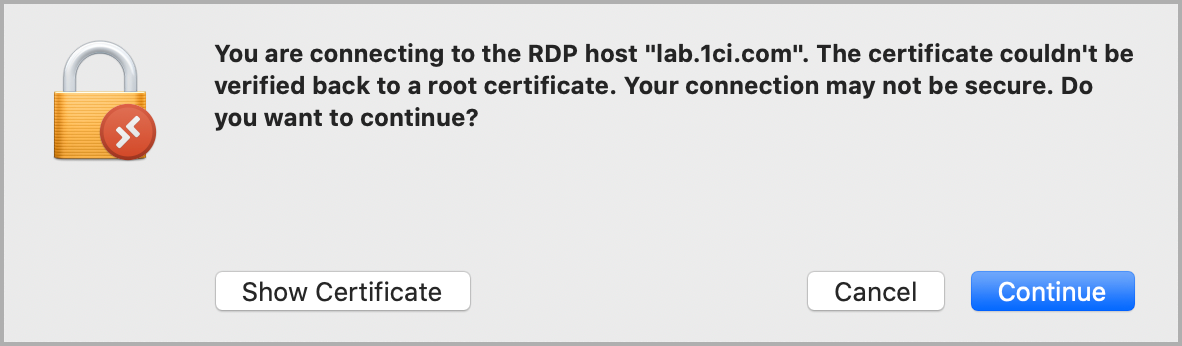
Don't worry about this warning, just click Continue one more time.